
AI Automated E-Signature Workflow for Law Firms
Overview
This workflow automates the preparation, sending, tracking, and completion of documents that require client signatures. The goal is to reduce delays, eliminate manual follow up, ensure documents are signed in the correct order, and create a clean audit trail for compliance and recordkeeping.
How E-Signature Automation Works
AI prepares the document, inserts the correct signature blocks, attaches any required addendums, and sends the package using the firm’s e-signature tool. The system tracks opens, views, and signature events. It can send reminders, escalate overdue documents, and notify attorneys when signatures are complete. Signed files are automatically stored in the correct matter folder and logged in the CRM or PMS.
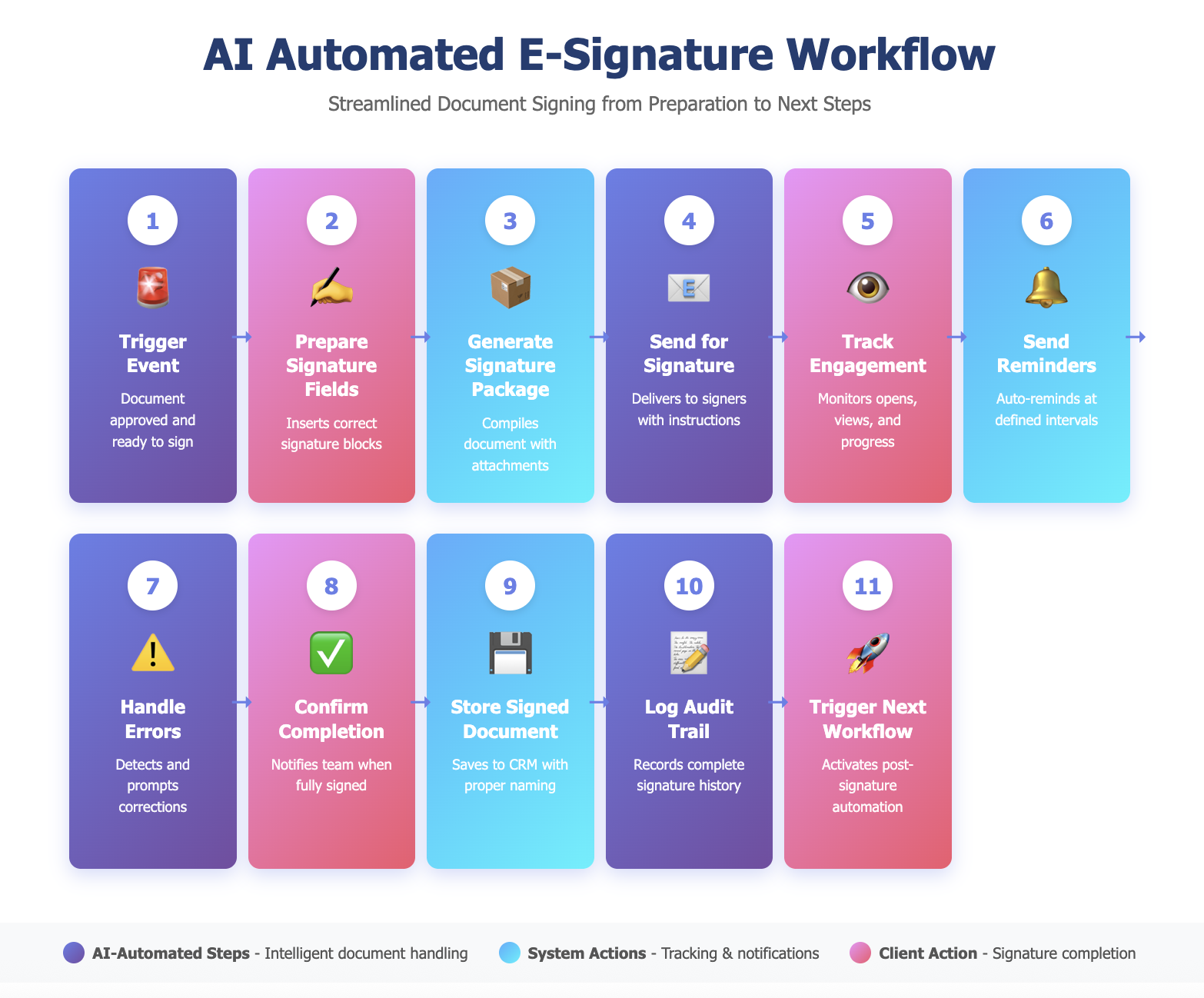
Step 1: Trigger Event
The workflow begins when a retainer agreement or required document is approved by the attorney or when a milestone in the intake pipeline is reached. The correct document is selected and prepared for signature.
Step 2: AI Prepares Signature Fields
AI inserts the correct signature blocks based on the document type and number of signers. It adds fields for initials, dates, checkboxes, and any required acknowledgments. It confirms that the intended signers match the record in the CRM.
Ideally, it will prepare for different use-cases. Here are examples: For retainers: signature + date. For medical authorizations: signature + initials on each page. For settlement agreements: signature + checkbox acknowledging terms. AI selects the correct configuration based on document type.
Step 3: AI Generates the Signature Package
AI compiles the document with all attachments, disclosures, or addendums. It arranges pages in the correct order, embeds text fields that need client input, and formats the package to meet the firm’s compliance requirements.
For example: Client signs first, then spouse (if joint representation), then attorney countersigns. AI enforces the sequence so the attorney cannot sign until clients complete their signatures.
Step 4: AI Sends the Document for Signature
AI sends the package to each signer using the firm’s e-signature platform. It sets the signing order when multiple signatures are needed and personalizes the message with clear instructions.
Step 5: AI Tracks Delivery and Engagement
The system monitors whether the client opened the email, viewed the document, and began the signing process. It records timestamps for each action and updates the CRM with status changes.
This visibility helps firms identify bottlenecks. If a client views the document 5 times but doesn’t sign, staff can call to address concerns. If they never open it, staff knows the email may be blocked or incorrect.
Step 6: AI Sends Automated Reminders
If the document is not signed within the expected timeframe, AI sends reminders at firm defined intervals. For urgent matters, it can escalate reminders or notify staff so they can follow up.
For example: Reminder 1 at 24 hours, Reminder 2 at 48 hours, Escalation to staff at 72 hours. Urgent matters can use shorter intervals (4 hours, 8 hours, 12 hours).
Step 7: AI Handles Errors or Missing Information
If a client signs incorrectly or skips a required field, AI identifies the issue and prompts the client to correct it. It can also alert staff if a signer refuses or declines.
For example: Client types their name instead of using signature tool, misses initials on addendum pages, or leaves required date fields blank. AI detects these issues before finalizing and prompts correction.
Step 8: AI Confirms Completion
When all required signatures are collected, AI marks the document as complete. It notifies the responsible attorney or staff member and updates the matter status to reflect that the onboarding requirement is fulfilled.
Step 9: AI Stores the Signed Document Automatically
The signed PDF is stored in the correct folder in the CRM, PMS, or document management system. It is named according to the firm’s file naming conventions and linked to the relevant client and matter records.
Step 10: AI Logs the Signature Audit Trail
The system stores the complete audit history including email delivery, views, signature timestamps, IP addresses, and identity authentication steps. This supports compliance and provides evidence in case of any dispute.
Step 11: AI Triggers the Next Workflow
After completion, AI activates the next automation in the client lifecycle such as creating the matter in the PMS, opening onboarding tasks, scheduling a kickoff meeting, or starting conflict monitoring.
For example: Once retainer is signed, AI creates the matter in Clio, opens a trust account if required, assigns the case to the litigation team, generates first task (conflict check finalization), and sends welcome email with client portal login.
Why This Workflow Matters
Retainer agreements, fee arrangements, authorizations, disclosures, and engagement letters all require signatures before legal work begins. Manual e-signature handling often leads to bottlenecks, lost emails, inconsistent follow-up, and missing documents.
Automated e-signature flows shorten turnaround times, improve client experience, increase the percentage of signed retainers, and ensure every signed document is stored and logged correctly. It also removes the burden from staff who currently track signatures manually across multiple platforms.